
Guide
Content Schedule
See the month ahead, and move anything that hasn't gone out.
What the Content Schedule is
The Content Schedule is the month ahead, on one page. Everything your team has planned lives here — social posts, articles, and campaign beats — each card showing which network it's for, what time it goes out, and whether it's still waiting on you. It's the answer to “what's actually going to happen this month?”
Nothing on this calendar is a promise you can't change. A card that hasn't gone out yet can be moved, opened, edited, approved or skipped — the schedule is a working document, not a printout.
Reading the top of the page
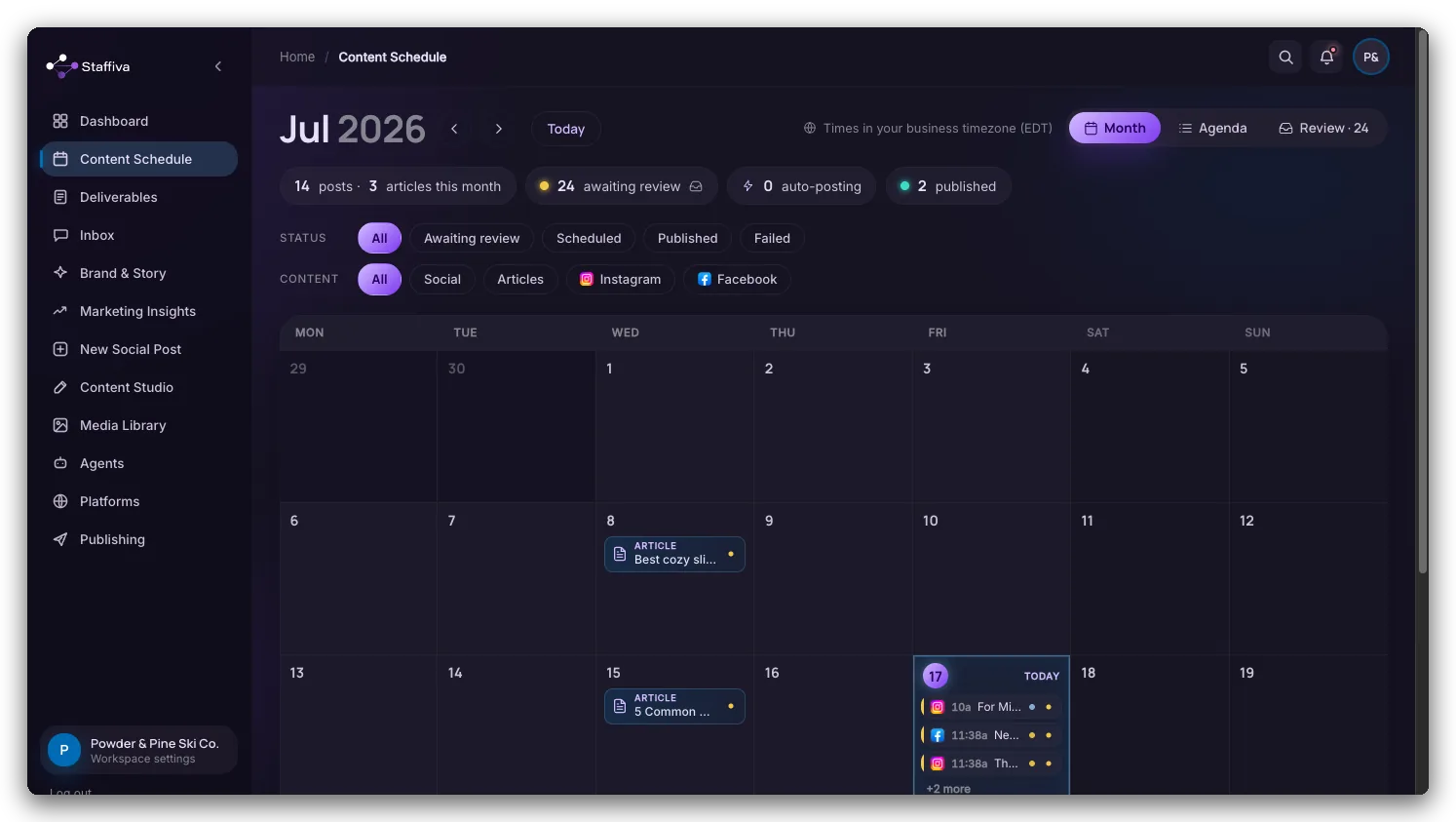
The header answers four questions before you scroll:
- Posts and articles this month — how much is planned in the month you're looking at.
- Awaiting review — drafts that need a yes from you. Click it to jump straight to them.
- Auto-posting — how many will publish without asking, because you turned a network up to automatic.
- Published — how many have already gone out.
Beside them is the time zone every time on the page is written in — your workspace's business time zone, not your laptop's. If that's wrong, change it in Settings; every scheduled time on this calendar is described against it.
Three ways to look at the same month
- Month — the grid. Best for spotting gaps and clumps at a glance.
- Agenda — the same content as a list, in order. Best on a phone, and best when you want to read what's coming rather than see the shape of it.
- Review — a rail of just the things waiting on you, so you can work the queue without hunting for it. The count next to the tab is how many are waiting.
The two filter rows narrow whichever view you're in. Status is All, Awaiting review, Scheduled, Published, or Failed. Content is All, Social, Articles, or a single network. They stack, so “Instagram, awaiting review” is two clicks.
Moving something
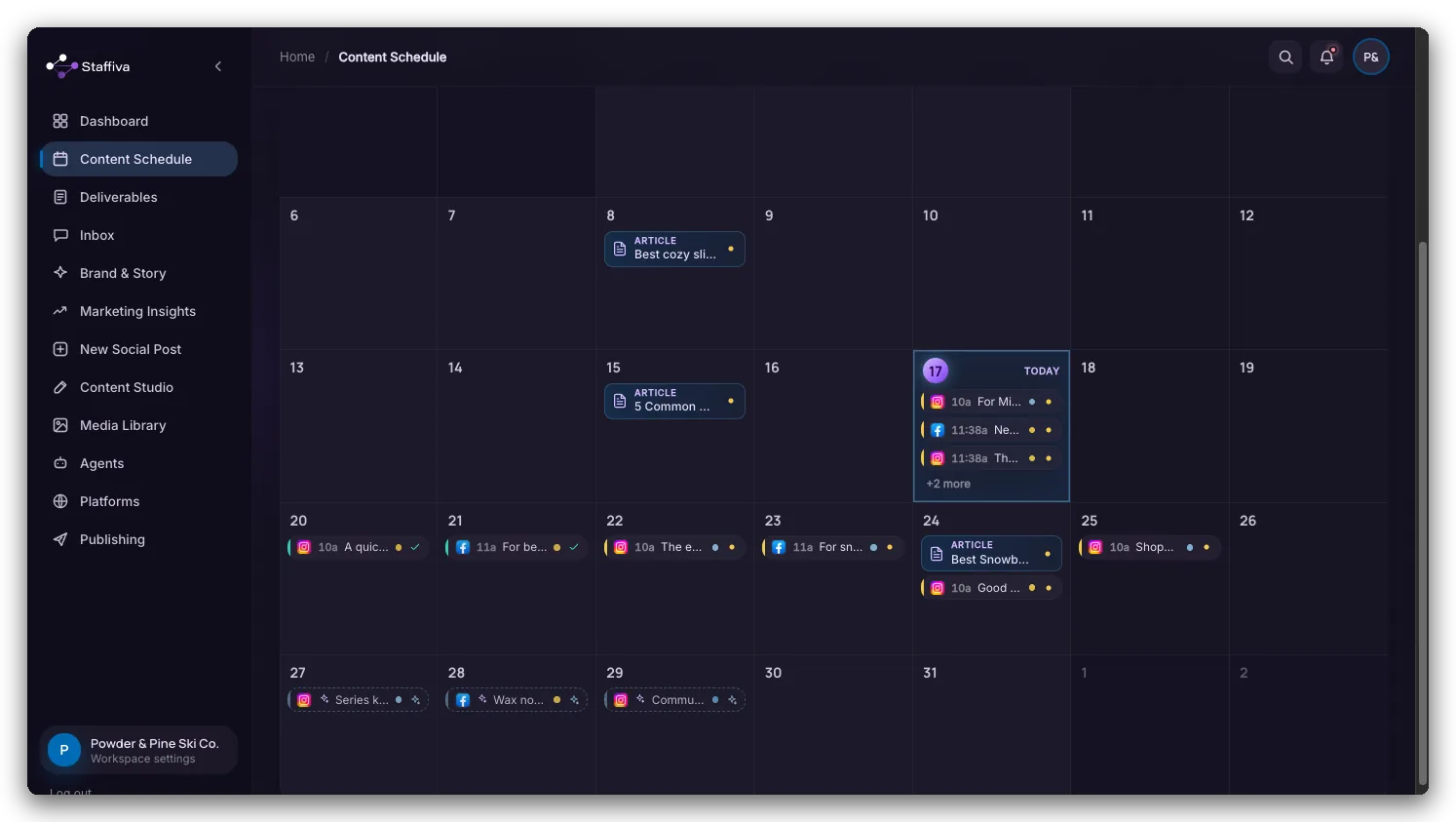
Drag a card to another day and it keeps its time of day — a 10am post dropped on Thursday is a 10am post on Thursday. You can move anything that hasn't gone out yet: drafts waiting on you, approved posts waiting for their slot, and posts set to publish automatically.
Published and failed posts don't move, and that's deliberate: the calendar is a record of what happened as much as a plan for what will. A post that's already live can't be un-sent by dragging it somewhere else.
Opening a card
Click any card to open its preview — the post as it will look on that network, with the image or Reel attached to it. From there you can approve it, send it back, or open it in full. It's the same review panel Deliverables uses, so nothing is hidden behind the calendar view.
Adding something yourself
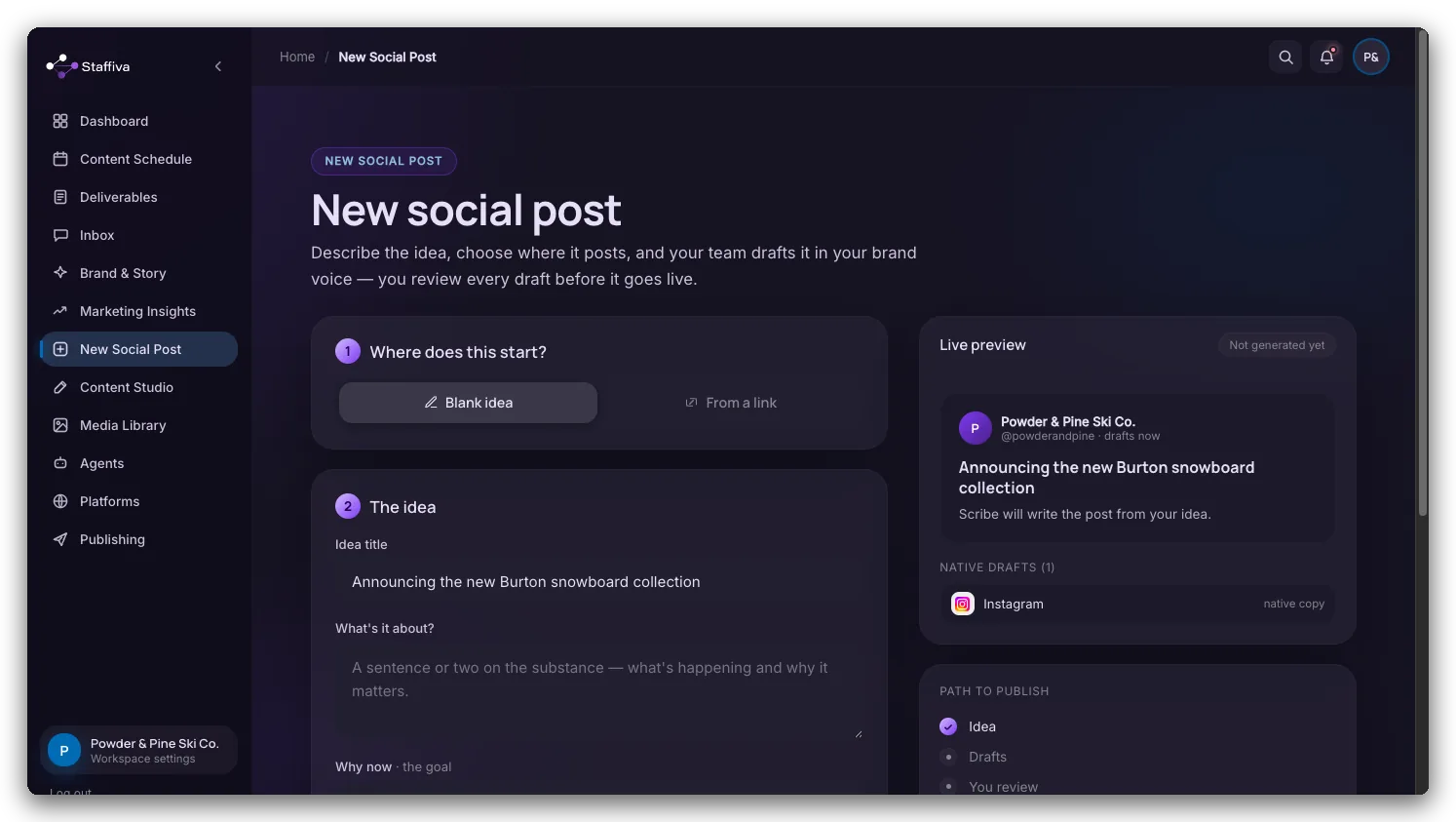
The calendar fills itself from your posting cadence, but you don't have to wait for it. New Social Post takes one idea — typed, or pulled from a link — and drafts it natively for every network you pick, with a live preview as you go. It lands in the same review queue and on the same calendar as everything else.
For a whole run of posts around a single date — a launch, an event, a seasonal push — use Campaigns instead. For long-form, use Content Studio and the articles guide.
When the calendar is empty
A blank calendar almost always means one of two things. Either you haven't set a posting cadence yet — how many social posts and articles you want per week, which lives in Agents — or you're looking further ahead than your team plans. Scribe works a couple of weeks out, so a month three months from now is genuinely empty rather than broken.
One more gate worth knowing: until you've finished (or skipped) the creative kickoff, the calendar stays behind a prompt asking you to set your creative direction. That's on purpose — it's what makes the images and the tone match your brand instead of guessing.